How to run the sound test
- Set your device volume to about half, and the volume slider above to 30%.
- Press Play test sound. If you hear the music clip, your speakers, audio driver and playback device are all working.
- Use the Left / Right buttons to confirm each speaker plays on the correct side, then try the stereo sweep.
- Check the bass and run a frequency sweep to hear the range your speakers can reproduce.
- Play pink noise and listen for buzzing, rattling or one speaker sounding louder than the other.
All of the testing works inside your browser: every test sound is generated live, so this speaker test tool works on Windows, Mac, Chromebook, Android and iPhone with nothing to download.
No sound? How to fix it
If the audio test is silent, work through these checks in order. They solve the vast majority of “no sound” problems.
1. Volume and mute
Check the device volume, any physical mute key, and the volume knob on external speakers. In your browser, right-click the tab and make sure the site isn’t muted. On iPhone and iPad, flip the ring/silent switch off; web audio is often silenced in silent mode.
2. The right playback device
Computers often have several audio outputs: built-in speakers, HDMI monitors, USB headsets and Bluetooth devices. If sound goes to the wrong one, you hear nothing.
- Windows: click the speaker icon in the taskbar, then choose the output device from the list. For more detail, open Settings › System › Sound.
- macOS: open the Sound menu in the menu bar (or System Settings › Sound › Output) and pick your speakers.
- Android / iOS: disconnect Bluetooth devices you aren’t using; your phone may still be sending audio to them.
3. Cables, power and Bluetooth
Make sure external speakers are powered on and plugged into the headphone/line-out jack (usually green), not the microphone input. Re-pair Bluetooth speakers if they connect but stay silent.
4. Audio driver and operating system
If no app produces sound, the problem is usually the audio driver. On Windows, open Device Manager › Sound, video and game controllers, then update or reinstall the driver, or run the built-in audio troubleshooter. Restarting the computer often fixes a stuck audio service. On a Mac, restarting resets the Core Audio system.
5. Test in another browser
If other apps play sound but this page doesn’t, try another browser or disable extensions that block audio. The sound test needs a modern browser with the Web Audio API (any current version of Chrome, Edge, Firefox or Safari).
What each test checks
Left and right audio channels
Stereo audio has two audio channels. For speakers to be working properly, the left and right channels must each reach the correct side: the left speaker plays the left channel and the right speaker the right. Swapped cables, speakers placed on the wrong side, or a “mono audio” accessibility setting can all mix them up. If both chimes come from both speakers, look for a mono setting in your operating system’s accessibility options.
Stereo test
The stereo sweep moves a tone smoothly across the stereo field. On a correctly set up pair of speakers it should glide evenly from the left speaker, through the middle, to the right. If it jumps or the middle sounds weak, your speakers may be wired out of phase. The headphone test includes a dedicated polarity check.
Bass test
Deep bass below about 60 Hz is felt as much as heard and needs large drivers or a subwoofer. Laptop and phone speakers typically start at 100–150 Hz, so silence on the 30 and 50 Hz buttons is normal on them. If a bass tone makes your speakers buzz or rattle, lower the volume. That’s the speaker reaching its limit.
Frequency sweep
The frequency sweep glides from 20 Hz to 20,000 Hz, the full range of human hearing. Listen for where the tone first becomes audible and where it fades away, and press Mark this frequency to note the point. Dips or sudden loud spots along the way show resonances in your speakers or room. For full control over a single frequency, use the tone generator.
Pink noise
Pink noise has equal energy in every octave, so it sounds balanced to the ear. It’s what audio engineers use to set up speakers: both speakers should sound equally loud and the sound should appear centered between them. It’s also the best signal for finding rattling panels or loose parts.
Tips for better speaker sound
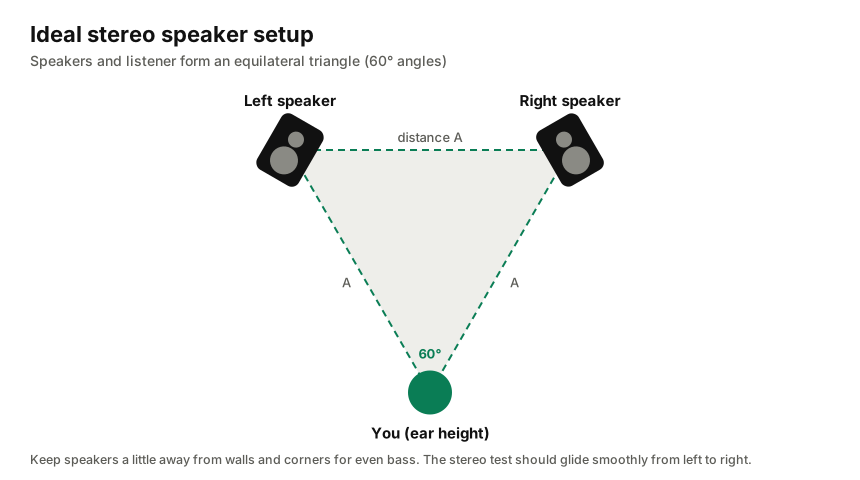
- Place stereo speakers at ear height, as far apart as you sit from them, angled toward you.
- Keep speakers a little away from walls and corners to avoid boomy, uneven deep bass.
- Turn off “enhancements”, virtual surround or loudness effects in your sound settings if the test sound seems distorted.
- Check the balance slider in your operating system if one side always sounds louder.
Frequently asked questions
How do I check sound audio on my computer?
Open this page, set your volume to about half and press Play test sound. If you hear the clip, your audio output works. Then run the left/right and bass tests to check each speaker. If you hear nothing, follow the “No sound? How to fix it” steps above.
Why can’t I hear the sound test?
Check that your device isn’t muted, the browser tab isn’t muted, and the correct playback device is selected in your operating system’s sound settings. On iPhone, turn off the silent switch. If other apps also have no sound, update or reinstall your audio driver.
How do I test left and right speakers?
Press the Left and Right buttons in the Left/right test. The chime should come only from the matching speaker. If it comes from the wrong side, your speakers are swapped; if it comes from both, check that mono audio is turned off.
Why don’t I hear the bass test?
Small speakers in phones, tablets and laptops usually can’t reproduce frequencies below 100–150 Hz, so deep bass tones may be silent. That’s normal. Use headphones or speakers with a subwoofer to hear 30–60 Hz.
Is it safe for my speakers?
Yes at sensible volumes. Start low, especially for the bass test and frequency sweep. If you hear buzzing, rattling or distortion, turn the volume down.
Do I need to download anything?
No. Every test sound is generated live in your browser, so the sound test works on Windows, macOS, Linux, Android and iOS without downloads or plugins.